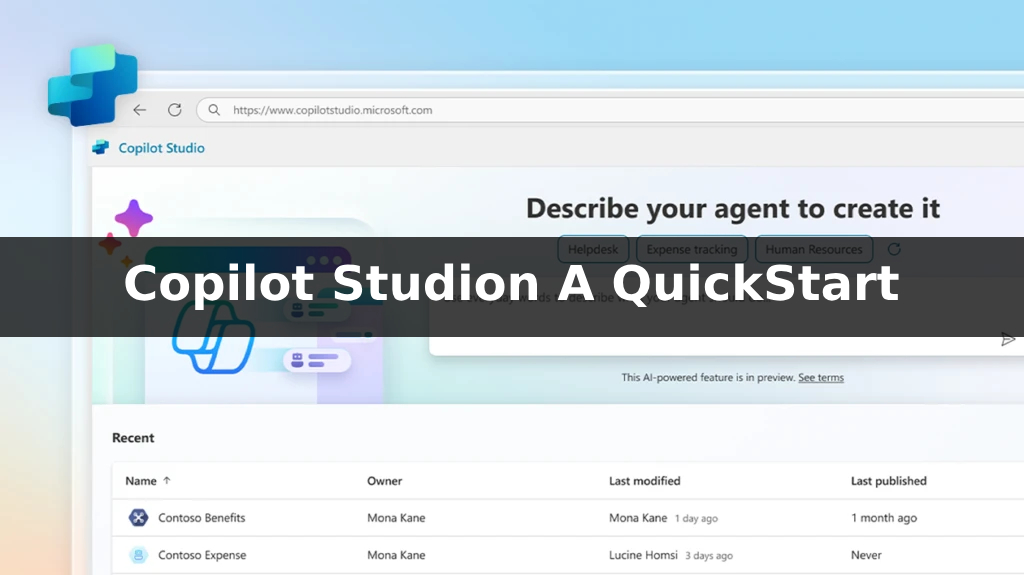
Copilot Studio enables teams to quickly and easily create intelligent agents through a graphical experience without writing any code. No data scientists or development team are required.
Article Copilot Studio Quickstart This will help you get started creating your first agent, learn how to upgrade their knowledge, test content changes in real-time, and publish the agent to a shareable test page.
Copilot Studio Quickstart Step-by-Step:
Create an agent
When you create an agent, you can describe what you want the agent to be and do, or you can detail it in parts.
The example in this article will create an agent named... Friendly Agent Tutor To help users learn about Copilot Studio, however, you can create your own agent using the public website.
- After logging in or signing up. In Copilot Studio, you will be on the following page: Home to choose Create from the left sidebar

- in the page Create to choose New agent
- Use the chat to describe your agent, using the provided guideline questions.

Write a simple description that includes information about what the agent helps the user with and the desired tone of conversation. Copilot Studio will use your responses to fill in the sections for name, description, tips, and knowledge used to identify the agent.
example: Your name is Friendly Agent Tutor. You help users learn how to create agents. You should talk to users like a kind, patient teacher.
- Add a picture for your agent.
- Click on the agent icon above.
- Choose Change icon
- Upload an image from your device (the file must be a PNG and no larger than 30 KB).
- Shortcuts Save
- Once you have the name, icon, description, and instructions complete, press... Create The agent overview page will appear.
You now have an agent ready to test! You can start chatting with the agent in the channel. Test your agent chat
Improve your agent.
Once you've created your agent, you can start testing and improving it immediately.
Go to the left navigation bar and select... Agents Then choose your agent.
Test for changes in the agent.
The best way to improve an agent is to... Test, adjust, and test again.
In this section, you will test how changing the agent's source of knowledge affects the agent's response.
- Start by testing the agent's responsiveness in the chat. Test your agent chat Try asking questions like, "How to create an agent?"

- In this example, the agent is configured to speak to the user gently and patiently. What if you change your tone of voice?
- Go to the section Details card then select Edit
- Change the instructions to have the agent speak as if... Jane Austen
- Test this new suggestion with the same questions. Notice how the answers change.

Change the agent's introductory text.
Help your agent make a great first impression with a new introductory message. This message will help users understand what your agent does and encourage them to start a conversation.
- in the window Test your agent chat Click on the agent's introductory text, under the heading. Conversation Start It will open automatically and Message node The contents of the message will be displayed.
- in the message box Message Select the text you want to change.
- Replace the introductory message with your own. In this introductory message, the agent should greet the user, state how they can help, and suggest how to start a conversation. You can provide examples of questions or phrases the user might ask.
Example of Friendly Agent Tutor:
Hello, I’m here to help you learn how to use Microsoft Copilot Studio. You can ask me all about agents: “What is an agent?” “How do I make an agent?” “How do agents work?” - Shortcuts Save to save
- Test the changes by clicking the icon. Refresh in the window Test your agent chat


Suggestions on how to start a conversation
If your agent is designed to work on Teams or Microsoft 365, you can configure... starter prompts Up to six suggestions can be made to help users start a conversation using Copilot Studio. starter prompts Provided automatically based on the agent's description and instructions.
How to add or edit starter prompts:
- on the face Overview Click the icon. Edit at the top of the section Starter prompts
- Edit or add titles and text as needed, then press... Save
Edit the agent's basic information.
You can change the agent's name, description, instructions, and resources at any time. Remember to test your changes along the way!
How to update your agent's name, description, or instructions.:
- in the face Overview Click Edit at the top of the section Details
- Edit the required information
- Shortcuts Save Remember that modifying instructions will affect how the agent interacts with the user, so always test after making changes.
Increase the knowledge resources for agents.
- in the face Overview Go to the section Knowledge then click Add knowledge
- Select the type of knowledge source (in this Quickstart, use...). Public websites)
- Enter the website URL and click. Add Next to the text input field.
- Name and describe your knowledge source to make it easier to manage later.
- click Add to increase


Publish your agent.
Once you are satisfied with the content you have created, you can publish your agent to the website.
- At the top of the page, click... Publish Then click Publish again in the confirmation box
- If published successfully, you will see a green bar at the top of the page.
- Click the three dots (...) button at the top and select... Go to demo website
You can share this link with others to test or demonstrate the agent's functionality.
What should we do next?
You have now successfully created, tested, and published your agent to your demo website. Congratulations! Your agent has many more capabilities; try them out and explore additional advanced features!
Interested in Microsoft products and services? Send us a message here.
Explore our digital tools
If you are interested in implementing a knowledge management system in your organization, contact SeedKM for more information on enterprise knowledge management systems, or explore other products such as Jarviz for online timekeeping, OPTIMISTIC for workforce management. HRM-Payroll, Veracity for digital document signing, and CloudAccount for online accounting.
Read more articles about knowledge management systems and other management tools at Fusionsol Blog, IP Phone Blog, Chat Framework Blog, and OpenAI Blog.
Majorana 1 chip: A quantum chip from Microsoft.
If you want to stay up-to-date with the latest technology and AI news, check out this website It's updated daily!
Developing Modern AI Chatbots: More Than Just Answering Basic Questions
Related Articles
- What is a copilot? A complete guide, including a comparison of AI in 2025.
- What is Copilot Chat?
- Data Warehouse Core Concepts: Understanding ETL/ELT, OLAP, and Data Marts
- Fabric Real-Time Insights: Leveraging Data Activator in Microsoft
- How to Choose the Right Enterprise Cloud Service Provider for Your Business
- Microsoft 365 for Project Managers: Tools to Keep You Organized & On Track